
MCP Server
Use GigHQ Inside ChatGPT
Connect your GigHQ job search data to ChatGPT and manage your entire job search through natural conversation — no app switching required.
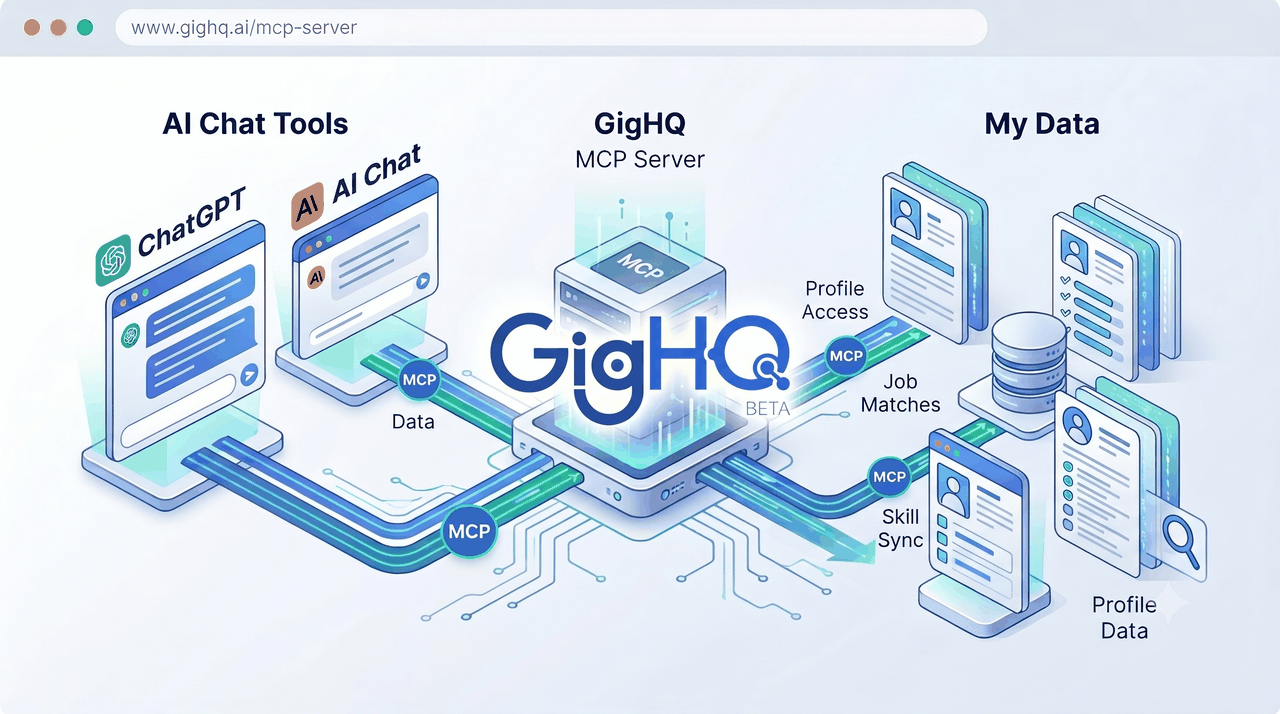
What Is the GigHQ MCP Server?
The Model Context Protocol (MCP) lets AI assistants like ChatGPT securely connect to external tools and live data. No copy-pasting. No context switching. Just natural conversation backed by real-time application tracking, company research, and career journal records.
How It Works
This is not a standalone web app you open in a browser. It is a background connector that gives ChatGPT direct, secure access to your GigHQ profile. You interact with it entirely through natural chat in your AI client.
What You Can Do
Interactive Conversations You Can Have
Track & Update Applications
Ask ChatGPT to show your pipeline, log recruiter calls, update interview statuses, or withdraw interest without touching the app.
Surface Stale Applications
Identify silent applications that haven’t had a status update in weeks and get personalized follow-up recommendations.
Analyze Opportunities & Fit
Run an instant skills gap analysis comparing your profile against saved job descriptions to frame gaps effectively.
Guided Career Journaling
Have a guided chat about recent projects. The AI asks structured questions and logs entry achievements with quantified metrics.
Research Companies & H1B Status
Query GigHQ’s database for H1B sponsorship records, hiring funnel benchmarks, and community signal insights.
Get Weekly Search Summary
Aggregate your pipeline health, conversion rates, longest-open applications, and high-priority action items for the coming week.
Context & Background
Context Automatically Shared with ChatGPT
Profile & Positioning
Your target roles, core skills, positioning statement, and career objectives are instantly accessible to ChatGPT.
Experience & Education
Complete professional history, previous roles, achievements, and academic background without re-uploading resumes.
Career Journal
Quantified project wins and impact metrics ready to pull into cover letters, resume revisions, and interview prep.
Live Applications
Real-time status updates, saved job descriptions, recruiter correspondence, and application history.
Data Permissions
What GigHQ Gives ChatGPT Access To
Your job applications
Status, company, job title, and correspondence dates.
Application details
Full record including saved job description.
Career journal
Achievements and milestones logged by role.
Your GigHQ profile
Skills, career objectives, and positioning statement.
Education
Academic background and certifications.
Work experience
Professional history and achievements.
Company data
Hiring metrics, applicant volume, and interview timelines.
H1B data
Sponsorship status and visa metrics.
Support
Frequently Asked Questions
How do I connect to the GigHQ MCP Server?
Add the GigHQ MCP Server to your AI assistant settings using the URL:
https://mcp.gighq.ai/mcp
I get an authentication error
Try disconnecting and reconnecting GigHQ from your ChatGPT settings. If the issue persists, sign out of GigHQ and sign back in, then reconnect.
ChatGPT says it can’t find a tool
Some tools require your job description to be saved in GigHQ first (like analyze_skills_gap). Follow the prompt ChatGPT gives you to update the application in GigHQ, then ask again.